

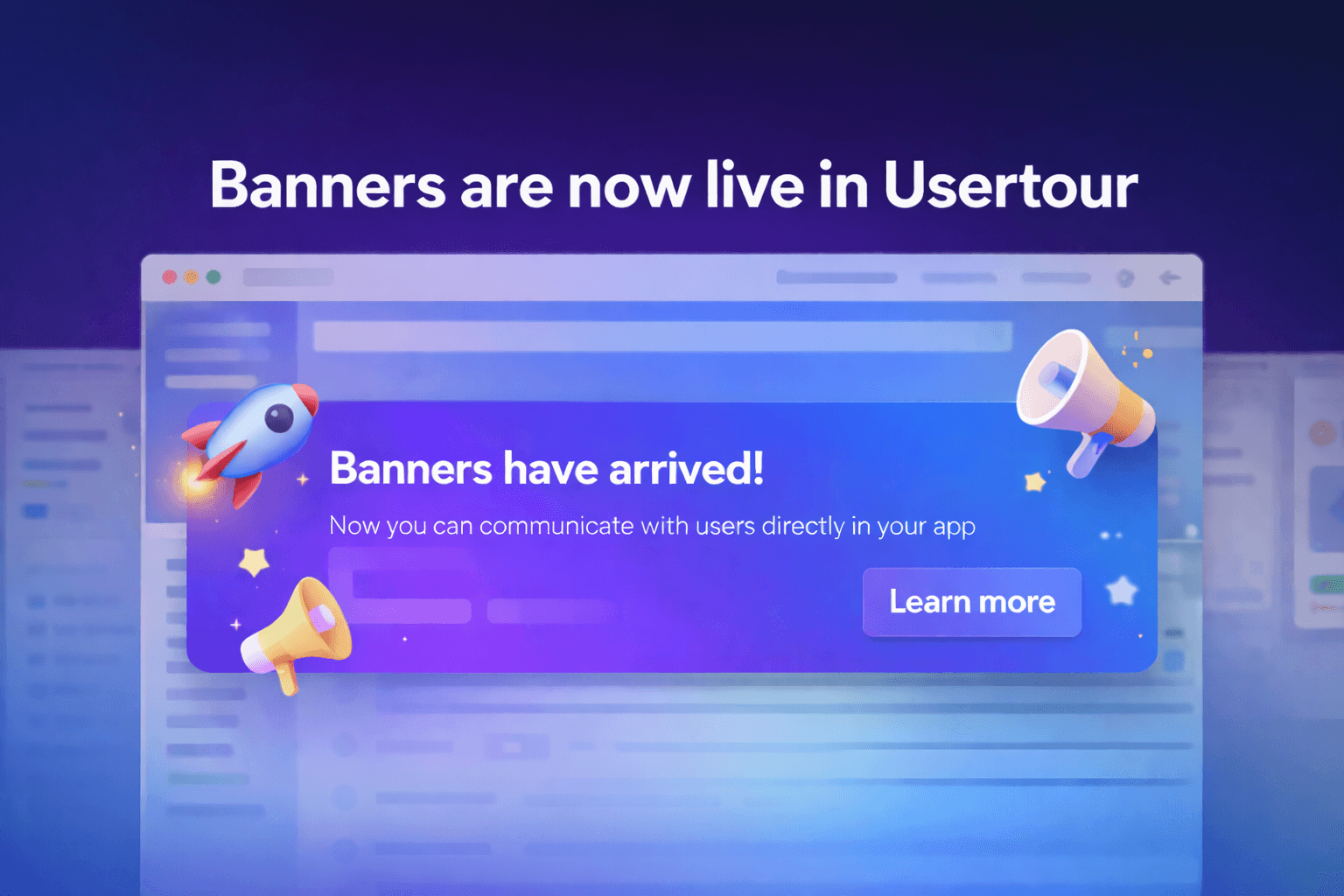
We just shipped Banners in Usertour.
Banners give you a simple way to communicate with users right inside your product. Instead of sending people to email or hoping they notice a changelog, you can place a message exactly where it matters: in the app, at the right moment, for the right audience.
You can use banners to:
- Announce new features and product updates
- Share maintenance notices or time-sensitive alerts
- Promote webinars, launches, and limited-time offers
Why we built it#
Not every message needs a tooltip or a multi-step flow.
Sometimes you just want a lightweight, high-visibility surface that gets the message across fast. A banner is perfect for that. It is prominent enough to be noticed, but flexible enough to fit naturally into your product experience.
What you can do with Banners#
Put the banner where it makes sense#
Usertour Banners support multiple embed placements, including:
- Top of page
- Bottom of page
- Top or bottom of a specific container
- Immediately before or after an element
If you want to anchor a banner to a specific part of your UI, you can target it with a CSS selector.
Add CTA buttons#
A banner can be more than a message bar. You can add buttons and turn it into a direct action point inside your app.
Button actions currently support:
- Dismissing the banner
- Starting a new flow
- Navigating to a page
- Setting a user attribute
- Evaluating custom JavaScript
That means one banner can announce a feature, send users into an onboarding flow, or trigger your own custom logic.
Control who sees which action#
Buttons can also be shown or hidden conditionally based on user attributes, user behavior, and context or event rules.
This makes Banners especially useful for segmented messaging. For example:
- Show an "Upgrade" CTA only to free users
- Show a "Book demo" CTA only to high-value accounts
- Show a "Try it now" CTA only to users who have not used the feature yet
Fine-tune layout and behavior#
You have control over the details that make a banner feel polished:
- Max embed width
- Max content width
- Border radius
- Outer margin
- Overlay over content
- Sticky positioning at the top
- Dismiss behavior
- Appear animation
- Z-index
So whether you want a slim release note bar or a more styled embedded announcement block, you can make it fit your product without hacks.
Match your brand#
Banners automatically inherit your brand colors, and you can override theme settings when needed.
That keeps the experience consistent with the rest of your onboarding flows, checklists, launchers, and surveys.
Target the right users#
As with the rest of Usertour, Banners are built for targeted delivery. You decide who sees the banner, when it appears, and how it should be prioritized.
This matters because the best announcement is not the loudest one. It is the one that reaches the relevant user at the right time.
Measure performance#
Each banner comes with analytics so you can see whether it is actually working.
Right now you can track:
- Banner Seen
- Banner Dismissed
That gives you a fast feedback loop for testing copy, timing, placement, and targeting.
Built for real product communication#
Banners work well when you need something more visible than a changelog, but lighter than a full onboarding flow.
That makes them useful for teams that want to:
- Launch a feature with a clear CTA
- Announce maintenance or service updates in-product
- Promote a webinar, sale, or release without interrupting the user journey
- Run segmented in-app campaigns based on user state or behavior
Where Banners fit best#
Banners sit in a practical middle ground:
- More prominent than a passive UI hint
- Less intrusive than a modal
- Simpler than building a full guided flow
- More targeted than a generic site-wide announcement
In short, they help product teams communicate important messages without breaking the rhythm of the app.
Try it now#
Banners are available in Usertour now.
If you want to see the setup options in detail, check the full guide here: