

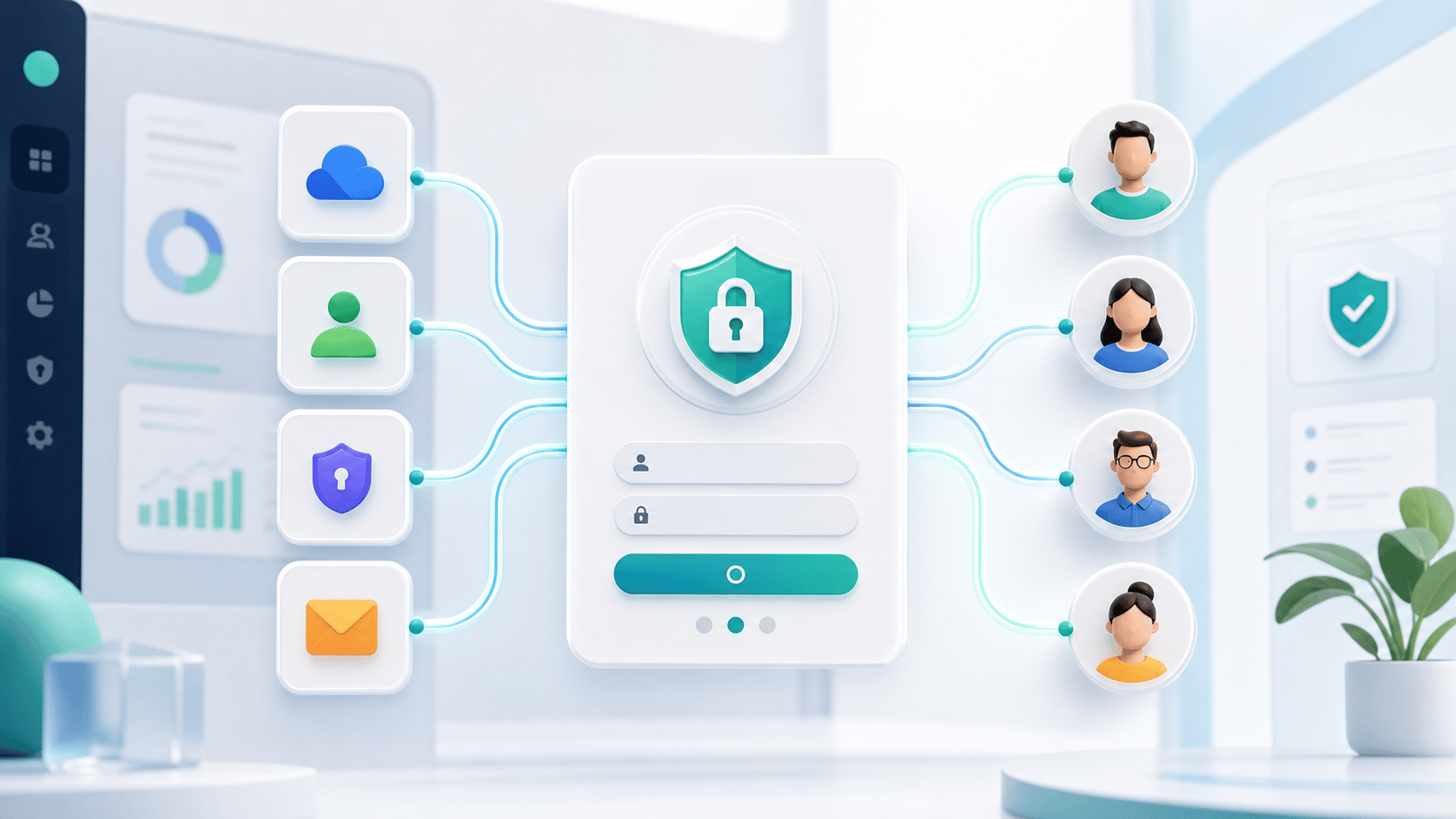
Today, we are launching Single Sign-On (SSO) for Usertour.
For growing SaaS teams, onboarding software is not a side tool anymore. It sits close to product usage, customer journeys, activation data, and the workflows that product, growth, customer success, and support teams rely on every day.
That also means access needs to feel more like the rest of your company stack.
SSO brings Usertour into your existing identity workflow, so your team can sign in through the same authentication system your organization already trusts.
The first version supports OIDC-compliant identity providers, including Okta, Google Workspace, Microsoft Entra ID, Auth0, OneLogin, Authentik, Keycloak, and others.
Why SSO matters#
When a team is small, separate app credentials are manageable. As the team grows, that changes quickly.
More teammates need access. More departments start using the product. Security requirements become stricter. People join, move teams, and leave the company. Admins need a cleaner way to manage access without chasing one-off logins across every tool.
SSO helps solve that.
With SSO enabled, Usertour access can follow the identity policies your organization already uses. Teams get a more consistent login experience, and admins get a simpler path for managing who can access the workspace.
What changes in Usertour#
SSO lets eligible projects connect Usertour to a company identity provider and let teammates authenticate through that provider.
That means:
- Fewer separate passwords for teammates to manage
- A sign-in flow that fits your existing security process
- Easier access management as your Usertour workspace expands
- A better fit for larger teams rolling Usertour out across departments
- Support for enforcing SSO for members when you are ready
The product experience inside Usertour stays the same. Your team can still build flows, checklists, banners, surveys, and in-product messages as usual. The difference is that login now fits more naturally into the way your company already manages access.
How setup works#
SSO is configured per project by a project Owner under Settings -> SSO. It is available on the Business plan for cloud workspaces and through an active license for self-hosted deployments.
Setup follows a standard OIDC flow:
- Copy the Redirect URI from Usertour.
- Register Usertour as an OIDC web application in your identity provider.
- Add the provider in Usertour with a name, Issuer URL, Client ID, and Client Secret.
- Share the per-project SSO login link with your team.
Usertour auto-discovers the provider's authorization, token, and userinfo endpoints from the Issuer URL, so admins do not need to paste every endpoint manually.
There are also controls for how strict you want the rollout to be. You can require SSO for members, keep Owners with password access as a fallback, and decide whether new users must be invited first or can be automatically added after authenticating through your identity provider. If you enable automatic user access, you can scope it to allowed email domains and assign a default role.
Built for larger rollouts#
We built SSO because more teams are using Usertour beyond a single product or growth squad.
Customer success teams use it to guide new accounts. Product teams use it to test and improve activation paths. Support teams use it to reduce repetitive questions. Marketing and growth teams use it to communicate launches and drive adoption.
When more teams depend on the same project, authentication becomes part of the rollout plan.
SSO makes that rollout easier. Instead of asking every teammate to maintain another set of credentials, you can bring Usertour into the same access model your organization already uses for other business-critical tools.
A stronger foundation for enterprise teams#
This release is also part of a broader direction for Usertour.
We want Usertour to stay simple for product teams while becoming easier to operate for companies with stricter requirements around access, administration, and deployment.
Recent releases have improved self-hosted administration, event tracking, analytics, exports, and operational controls. SSO adds another important piece to that foundation: secure, centralized authentication for teams that need it.
Getting started#
If your project is on a Business plan or your self-hosted instance has an active license, open Settings -> SSO and create a new provider.
The full setup guide is here: Single Sign-On (SSO).
We are excited to ship this one. It is a practical upgrade, but an important one: fewer login headaches for teammates, cleaner access management for admins, and a better fit for teams bringing Usertour deeper into their product operations.


