
Product updates should not depend on an email being opened or a changelog page being found.
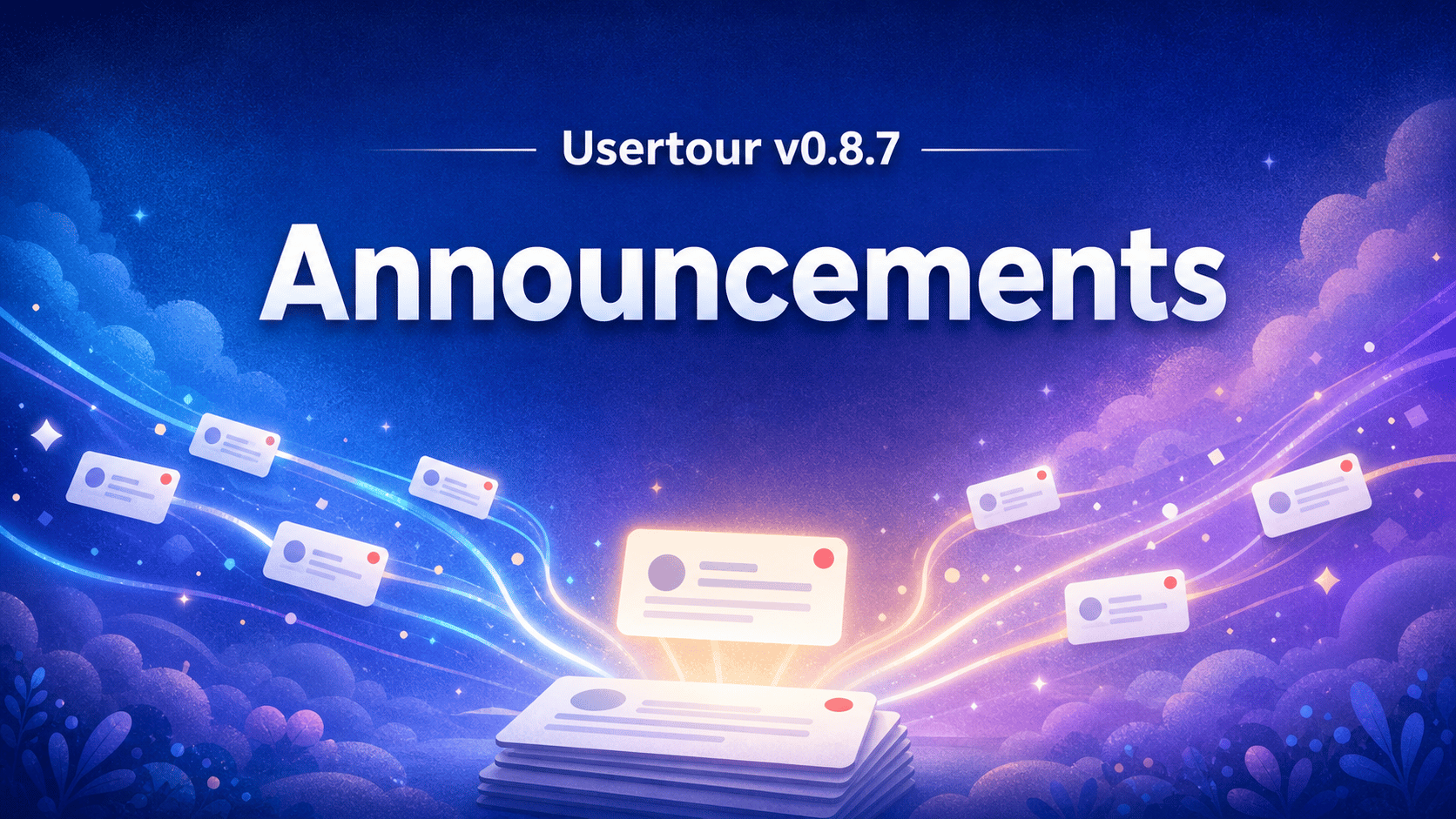
With Usertour v0.8.7, you can now publish Announcements directly inside your product. Announcements give product, customer success, and marketing teams a dedicated place to share releases, feature launches, maintenance notices, and events — without pulling users out of the experience.
They live in the Resource Center as a dated feed, can be targeted to the right audience, scheduled for the right moment, and measured after they go live.
A calmer way to keep customers informed#
Not every update should interrupt a user. A banner can be ideal for a brief, highly visible message. A flow is the right choice when a user needs guided instruction. But many updates need a home that is easy to find, useful to revisit, and respectful of the user's current work.
That is what Announcements are for.
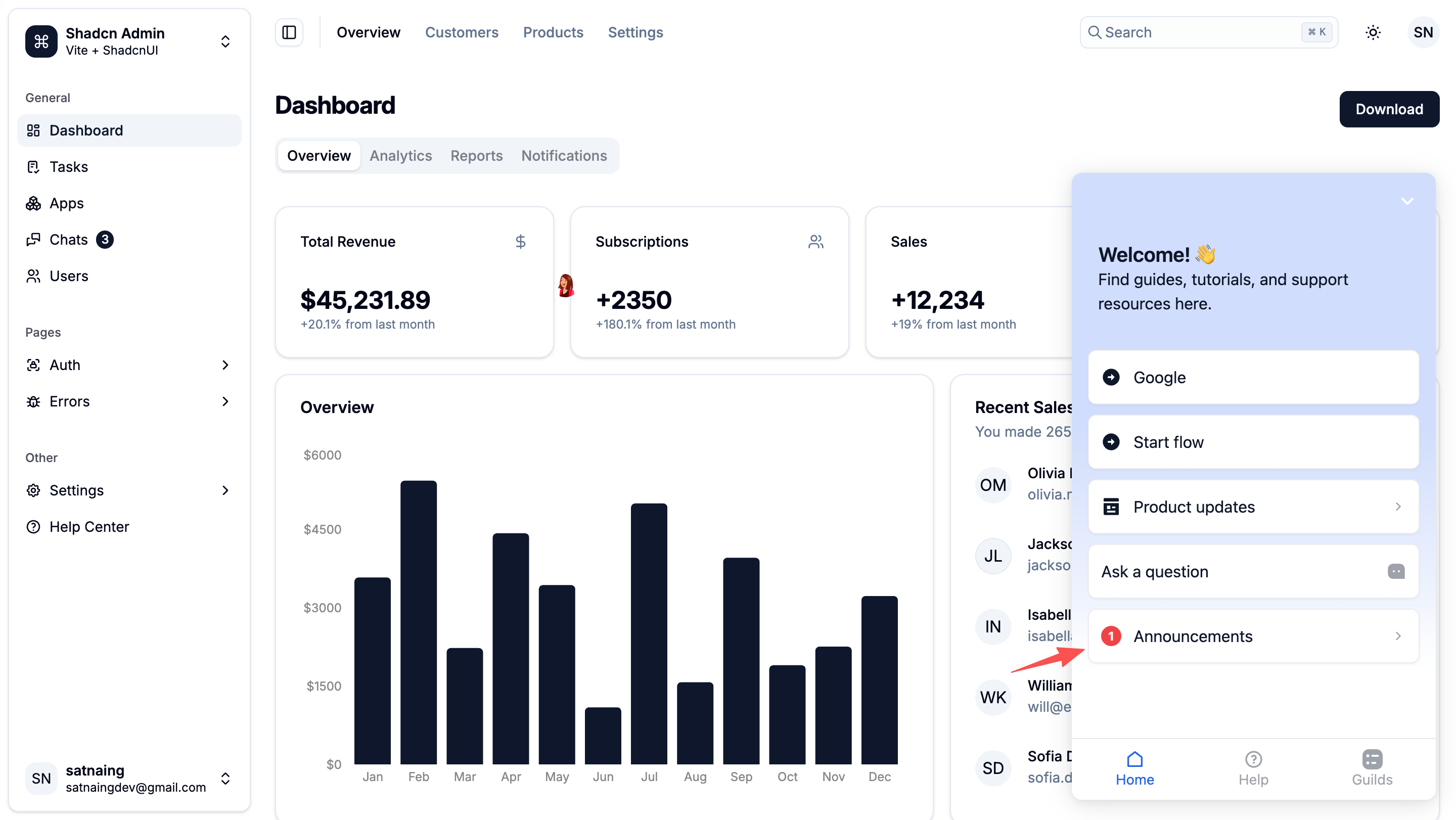
Each published announcement appears in its own Resource Center tab. The feed is ordered newest first and grouped by date, so it naturally becomes a clear record of what has changed in your product. Users see a short summary first, then can open a full detail page with Read more when they want the complete story. Returning to the feed preserves where they left off.
This makes Announcements a strong fit for:
- Product releases and feature launches
- Release notes that deserve more visibility than a changelog entry
- Planned maintenance or service notices
- Upcoming events, webinars, and time-sensitive offers
- Rollout updates for a specific customer segment
Write the update once, then make it useful#
Announcements are a first-class content type in the Usertour builder. Create one from the Announcements page, give it a title and a short feed summary, and add a full article when the update needs more context.
The editor supports the same rich content your team already uses elsewhere in Usertour: text, images, embeds, buttons, and user-attribute interpolation. That means a single announcement can feel tailored to the person reading it instead of being a generic broadcast.
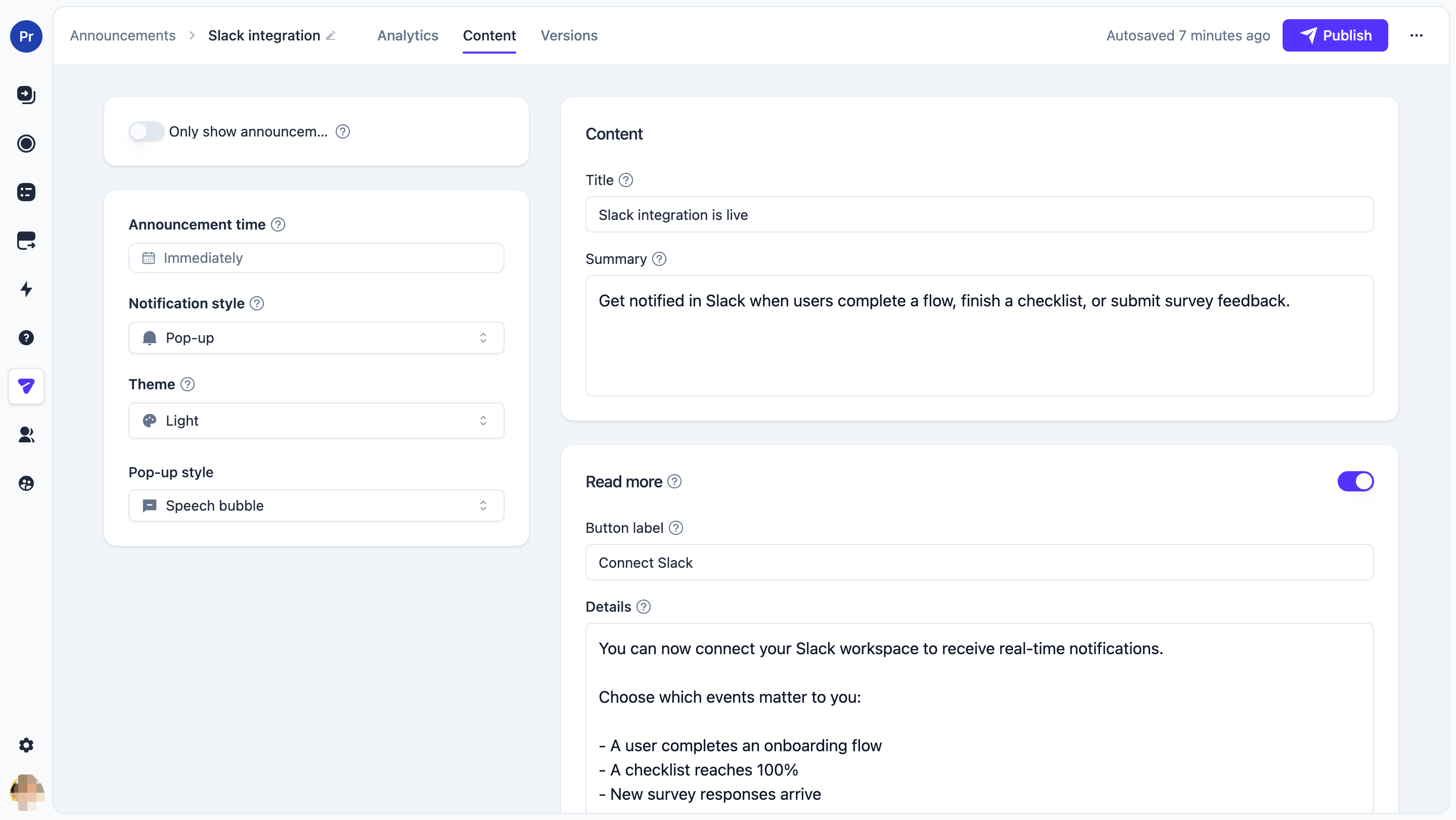
The most useful announcement is often the one that helps users take the next step. Buttons can start a flow, navigate to a page, or run JavaScript. For example, a feature announcement can include a Show me how button that immediately starts the relevant product tour. The gap between hearing about a feature and trying it becomes one click.
Choose the right amount of attention#
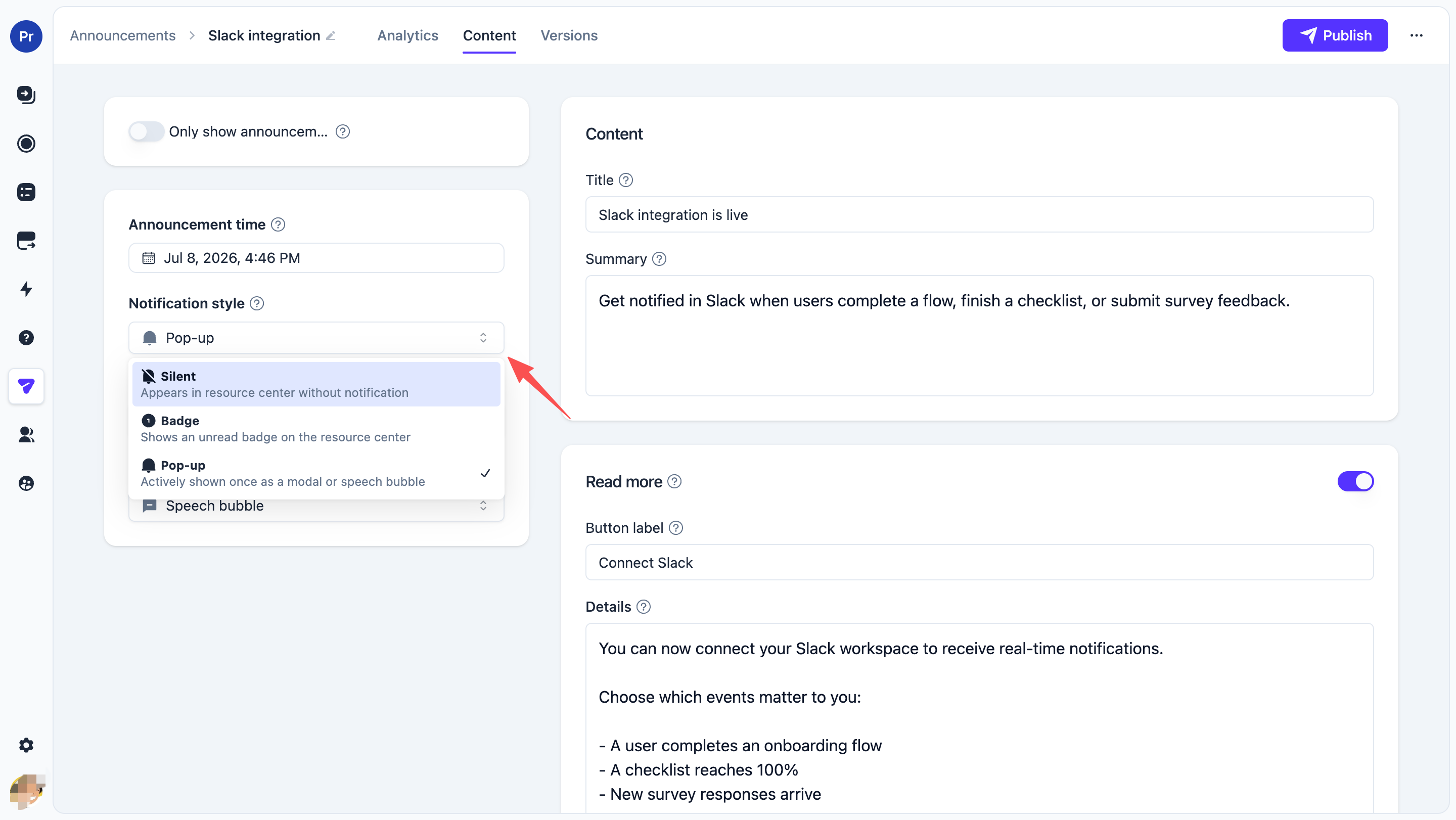
Announcements give you three notification levels, so routine release notes and major launches do not have to compete for the same level of attention.
- Silent puts the update in the feed without notifying the user. Use it for regular release notes and updates people can discover in their own time.
- Badge adds an unread count to the Resource Center launcher, Announcements tab, and Resource Center home row. Opening the feed marks the entries as seen and clears the badges.
- Pop-up shows the newest unseen announcement once, then leaves it available in the feed with its unread state. It is best reserved for the updates that truly need to be noticed.
For pop-up announcements, choose between a centered modal and a speech bubble anchored to the Resource Center launcher. The speech bubble follows all four launcher placements, and popup sizing is configured in the dedicated Announcements section of the theme editor.
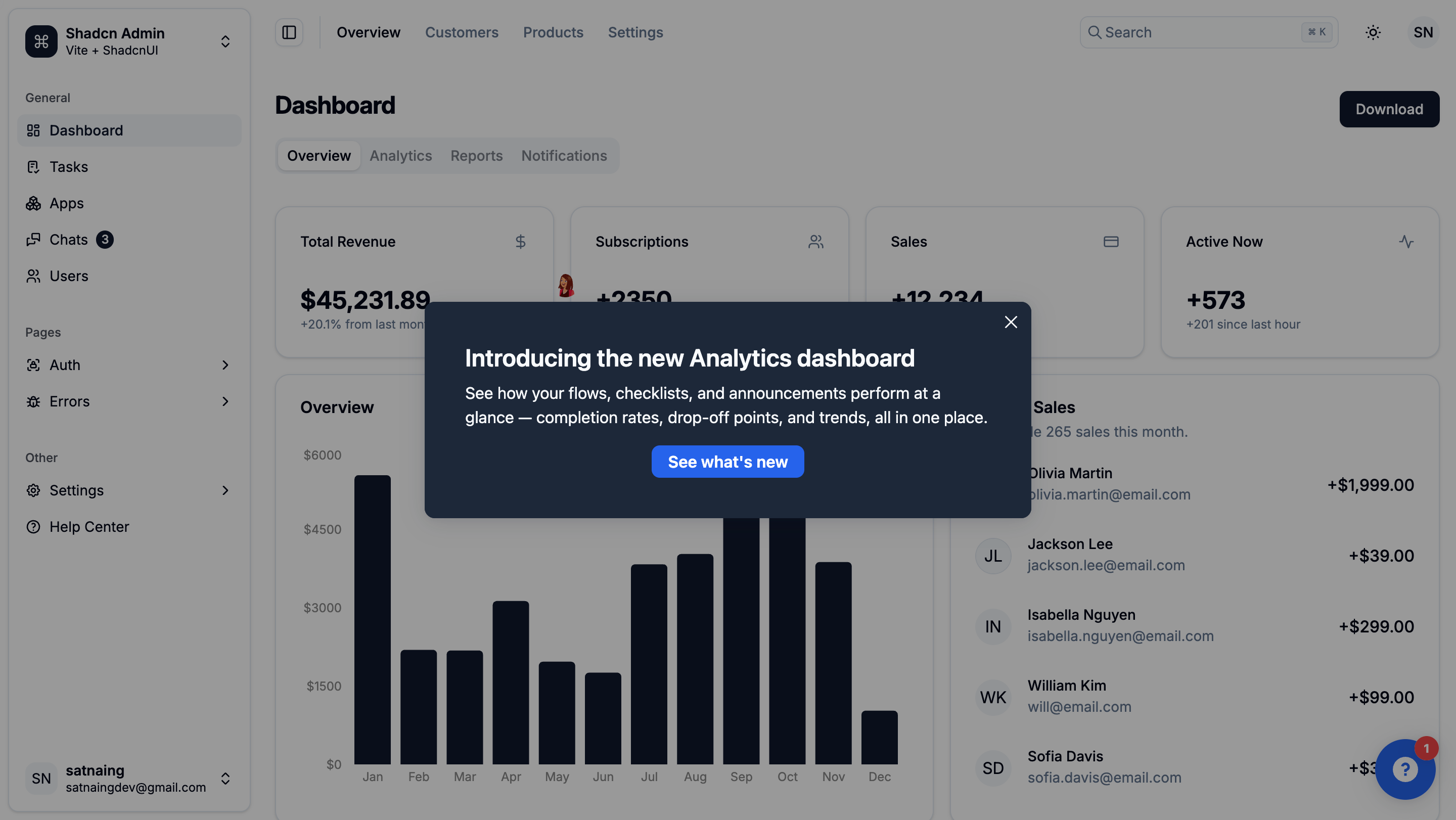
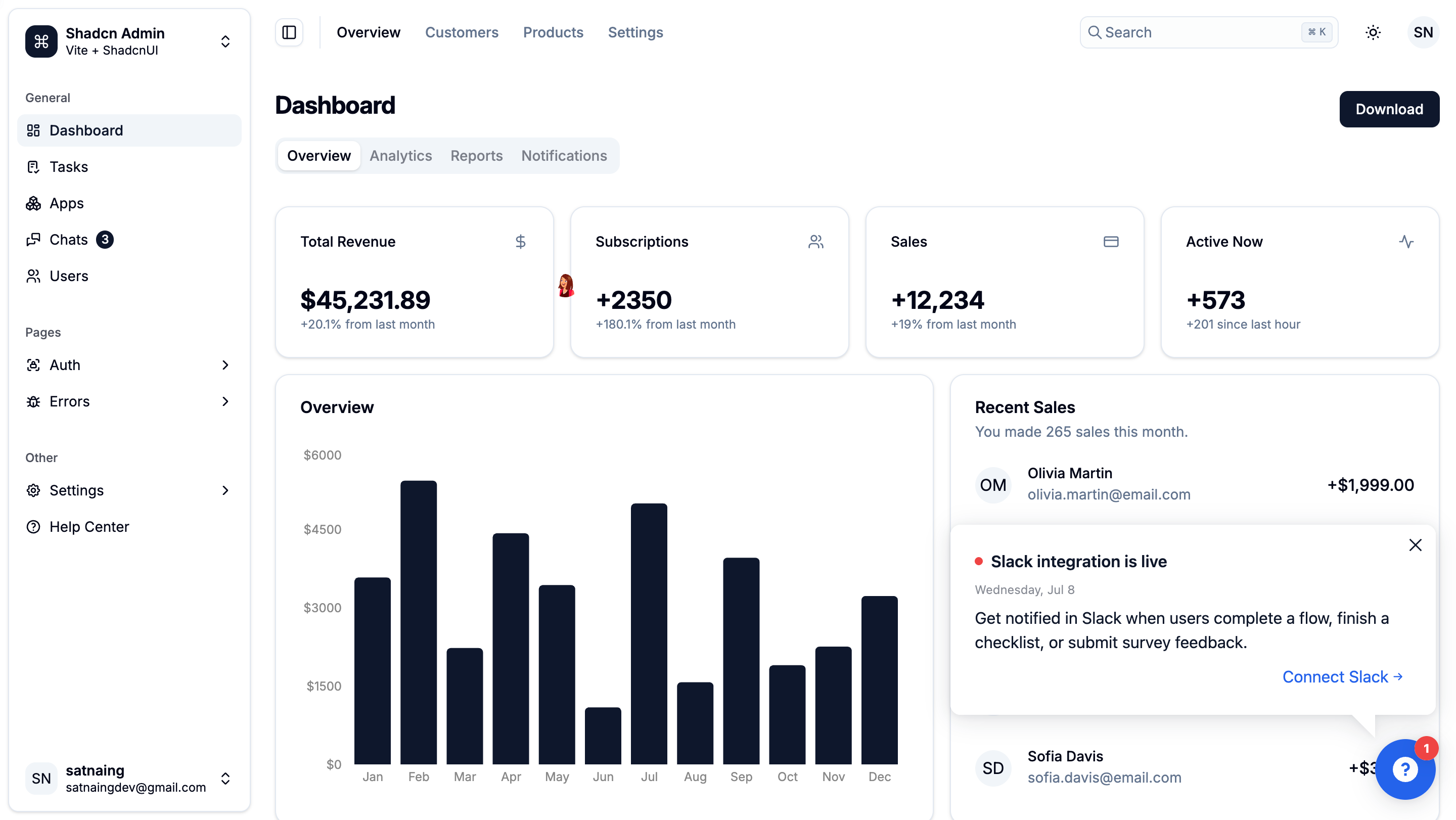
The goal is not to make every update louder. It is to let your team use the lightest useful touch: a quiet feed entry for routine news, a badge for something users should catch soon, and a one-time popup for a moment that matters.
Send each announcement to the right audience, at the right time#
Announcements use the same kind of conditional rules that power targeted onboarding. You can choose who sees an announcement based on the attributes and behavior that matter to your product.
Those rules are evaluated server-side and applied consistently: the feed, unread count, and popup always agree on whether a user should see an update. A deep link cannot reveal an announcement that the feed would otherwise hide.
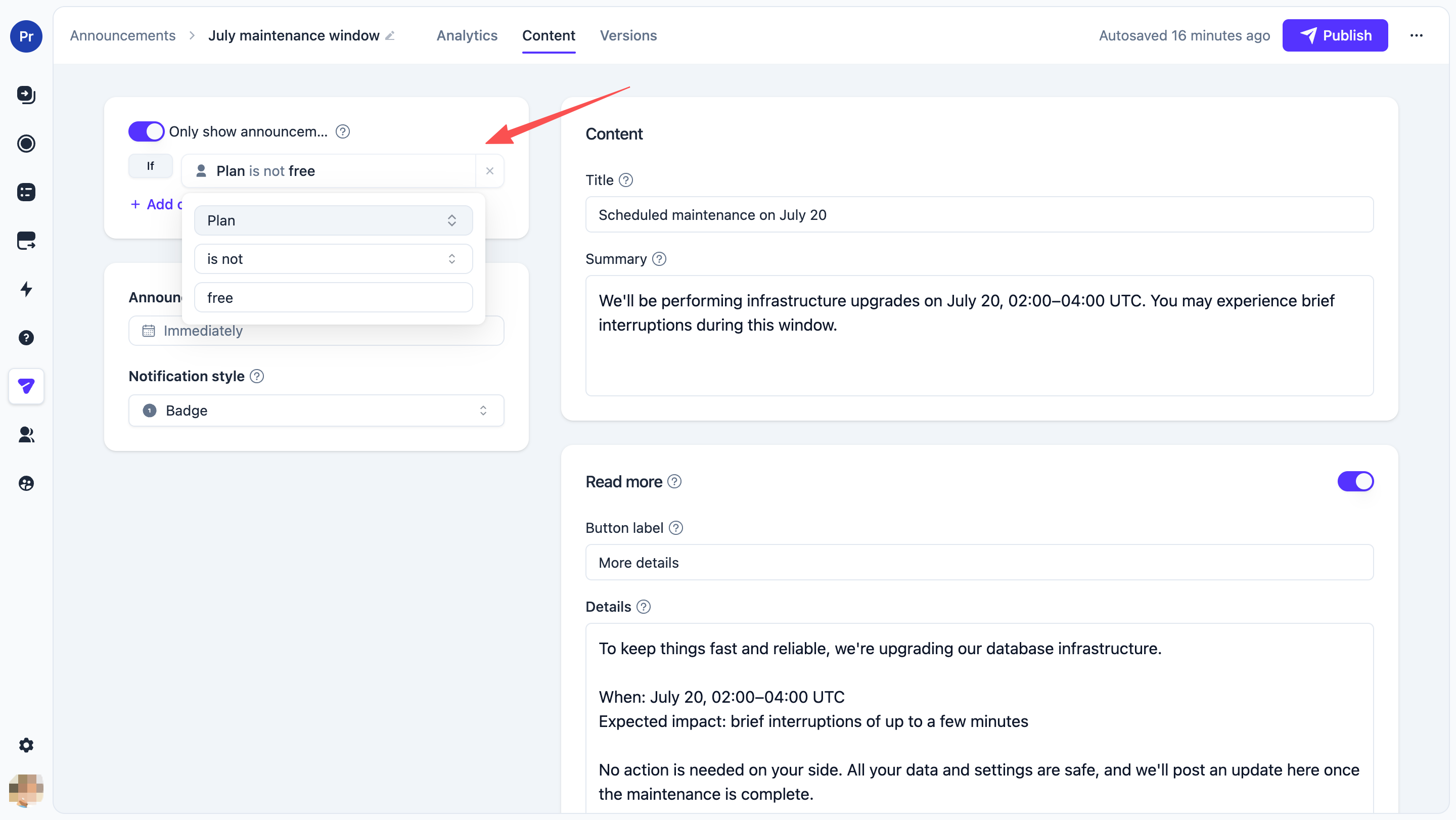
You can also publish immediately or set a future Announcement time. Until that time, the announcement stays hidden everywhere. When the time arrives, it appears in the feed under the correct date and follows the notification level you selected.
That makes launch preparation much easier. Draft the announcement, review the content and CTA, set the intended audience, then schedule it to go live alongside the product release — without a last-minute publishing scramble.
Measure whether the update reached people#
Announcements are not just another place to post release notes. They are measurable product communication.
The Analytics tab shows total views and the users who viewed the announcement, including when each person first saw it. Announcement events also appear in the user's activity feed, giving your team useful context when following up with customers or evaluating a rollout.
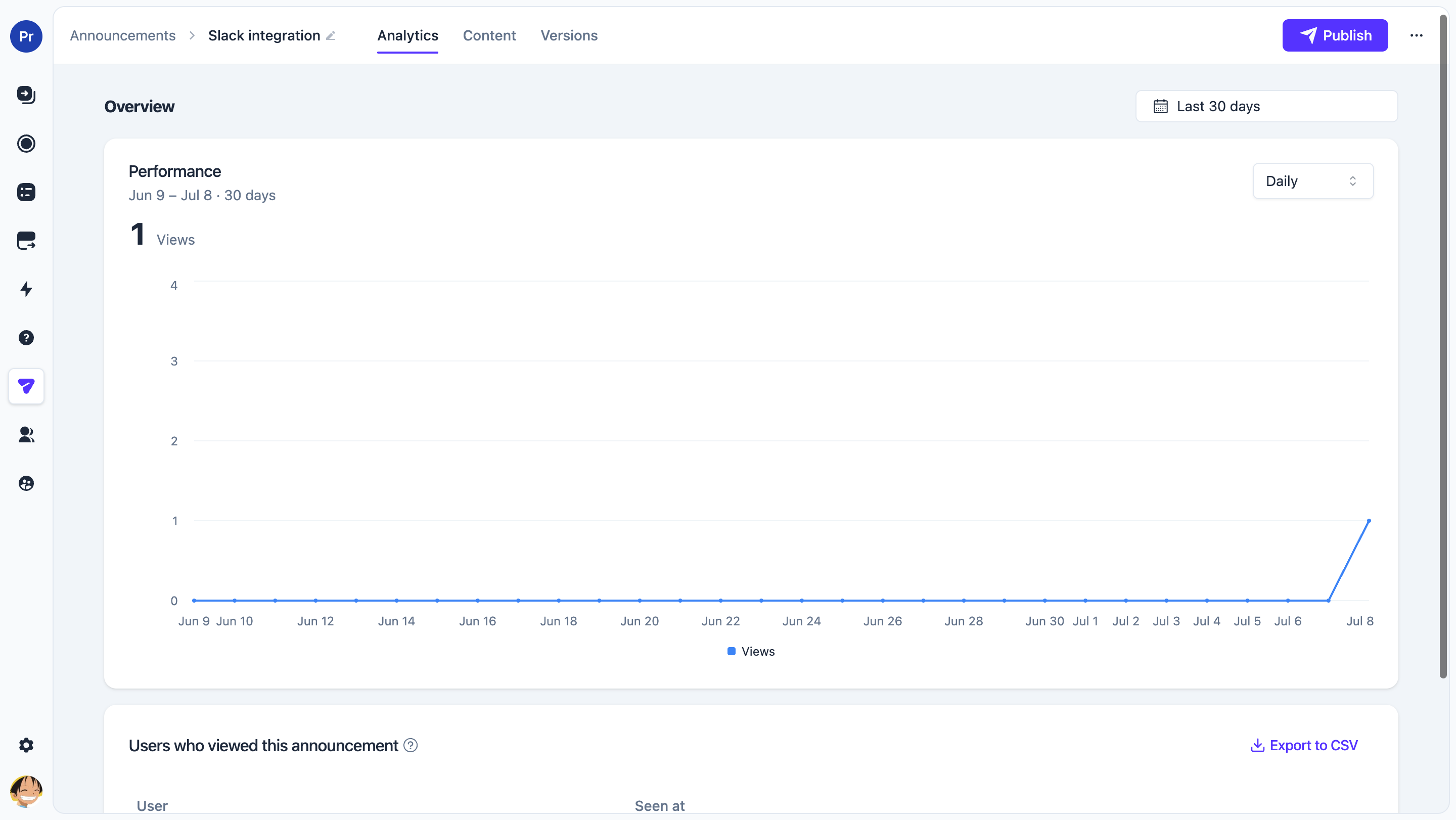
For existing projects, the default announcement events are backfilled during upgrade, so teams can begin tracking this new content type without losing the analytics foundation they expect.
More reliable saving and Resource Center behavior#
v0.8.7 also includes important reliability work around the content editor and Resource Center.
Concurrent edits to a published item's content and settings could previously create competing drafts or re-publish stale configuration. Those save paths are now serialized, so each update applies its own changes correctly. The autosave indicator now remains visible while a debounced save is pending and correctly reflects edits made during an in-progress write.
This release also protects previews from empty versions, retries failed Resource Center data loads instead of treating them as empty responses, and adds timeouts to widget socket round-trips so the panel does not hang after a dropped acknowledgement. Together, these changes make creating, publishing, and consuming content more dependable.
Get started with Announcements#
To use Announcements, make sure Usertour.js is installed in your app and that you have published a Resource Center. Then add an Announcements block to the Resource Center tab where you want the feed to appear, and create your first announcement from the Announcements page.
Start with one meaningful update: a new feature, a launch, or a release note that users would otherwise miss. Keep the feed summary concise, use Read more for the details, and add a flow CTA when users would benefit from hands-on guidance.
Learn more in the Announcements guide, or review the full v0.8.7 changelog.